Showing posts with label how. Show all posts
Showing posts with label how. Show all posts
Monday, March 2, 2015
How much water do plants need Dont care! Use Blumat!
How much water do your plants need? It took me a lot of time (and lots of indoor plants) before i finally found it, that i will probably never learn to give them the right amount of water. How to fix that problem?
Use the great Blumat Watering System. Less problems with your plants. More time to write great code :-)
Read more »
Use the great Blumat Watering System. Less problems with your plants. More time to write great code :-)

Sunday, March 1, 2015
How to update Linq to SQL dbml database layout in Visual Studio 2012
I have not been working with the Linq to SQL tool before and had to make some changes to an existing Visual Studio 2012 project. Some new colums were added to a database table and i needed to update the corresponding dbml file in the Visual Studio project.
How-i-fixed-it:
I found the solution here: http://stackoverflow.com/questions/1110171/how-to-update-linq-to-sql-dbml-file
Delete the modified tables from the designer, and drag them back onto the designer surface from the Database Explorer. I have found that, for this to work reliably, you have to:
a. Refresh the database schema in the Database Explorer (right-click, refresh)
b. Save the designer after deleting the tables
c. Save again after dragging the tables back.
Read more »
How-i-fixed-it:
I found the solution here: http://stackoverflow.com/questions/1110171/how-to-update-linq-to-sql-dbml-file
Delete the modified tables from the designer, and drag them back onto the designer surface from the Database Explorer. I have found that, for this to work reliably, you have to:
a. Refresh the database schema in the Database Explorer (right-click, refresh)
b. Save the designer after deleting the tables
c. Save again after dragging the tables back.
How to exchange data with a running SIMULINK model from MATLAB workspace
I have a SIMULINK model to filter and process sensor data. I wanted to access some of model data from MATLAB workspace while the model was running.
How-i-fixed-it:
In my simulink model i added a non-blocking UDP receive block, a triggered subsystem ad a UDP send block.
The Status output of the UDP receive block triggers the subsystem which contains the UDP send block and received as Input the model data i want to send to the workspace.
In the workspace i create a UDP object to communicate with the UDP blocks in the SIMULINK model.
When the model is running, i send just a single byte on UDP from Workspace to the UDP Receive to Trigger the send. Next step is to read the desired number of bytes from the udp port in the workspace.
I found out, that the timing of this solution is not very performant. When the model is very busy (or at least the CPU is), then there can be significant delays in the model sending out the data on UDP. I think this does not work for real-time Systems, but its a simple solution to get it working.
Read more »
How-i-fixed-it:
In my simulink model i added a non-blocking UDP receive block, a triggered subsystem ad a UDP send block.
The Status output of the UDP receive block triggers the subsystem which contains the UDP send block and received as Input the model data i want to send to the workspace.
In the workspace i create a UDP object to communicate with the UDP blocks in the SIMULINK model.
When the model is running, i send just a single byte on UDP from Workspace to the UDP Receive to Trigger the send. Next step is to read the desired number of bytes from the udp port in the workspace.
I found out, that the timing of this solution is not very performant. When the model is very busy (or at least the CPU is), then there can be significant delays in the model sending out the data on UDP. I think this does not work for real-time Systems, but its a simple solution to get it working.
How to use LateX bibunits package with TeXnicCenter
I got a LateX document template that was using the bibunits package to create the references list. Out of the box, TeXnicCenter was not creating the references list in the document, there were still "unknown references". How i fixed it: I found the right hints here: http://latex-community.org/forum/viewtopic.php?f=50&t=9168&p=74542 There are two steps to make it working: 1. In your project folder create a batch-file with the following Content (in case its not already part of the template files): @echo off echo Processing auxiliary files with BibTeX For %%i in (*.aux) Do bibtex %%i save it e.g as compilebib.bat. 2. Then click define output profiles (Alt+F7), select the postprocessor tab, and add new. Put compilebib.bat under executable.
Read more »
How to Fix USB Device Not Recognized in windows
In time, when you plug yours USB device to your windows, you maybe receive pop up massage. If your USB device is not detected, then this pop up will show you how you can repair this issue.
How to Fix USB Device Not Recognized in windows

- A simple way is restart of the windows computer. Unplug your USB. Restart and plug in and see if it works. If it does not, shut down your computer, wait for a few minutes and then start your computer again.
- Disconnect your other USB’s, connect this one and see if it helps.
- Run device manager and select action tab, and click Scan for hardware changes and see if help.

- Check if you need to update your drivers. Open Control Panel > Printers and devices. Check if you can see any entry for Unidentified USB device or Unknown Device. Open its Properties and update its driver, if an update is found to be available.

By allow the computer to turn a device to save power.

Run the Hardware and Device Troubleshooter or the Windows USB Troubleshooter and check if it helps. The automated tools check the hardware or USB connected to the computer for any known issues and fix them automatically
How to Fix USB Device Not Recognized in windows
Maybe this posting will continue to next post
How to change the name of a network connection in Windows 7
Windows 7 automatically names network connections like Connection 1 etc. I want to assign a name to the network connection myself, but theres no context menu or link in the network and share center. How i fixed it: Click on the network type symbol next to the name of the network at "Active Networks" in the network and share center. A dialog box opens to allow entering a name for the network and to choose the symbol to be displayed. Here are the screenshots for my german OS:  Click on the network symbol to open the dialog:
Read more »
How to create a hyperlink URL to open a specific page in a PDF file
I was wondering, how i can link to a specific page in a PDF file openend in the browser.
How-I-fixed it:
Heres the AdobeManual on PDF opening Parameters for command line and URL:
http://www.adobe.com/content/dam/Adobe/en/devnet/acrobat/pdfs/pdf_open_parameters.pdf
Specifying parameters in a URL
Commands are not case sensitive except for the value of a named destination. There can be no spaces in the URL.
●If you turn bookmarks off using a URL parameter when a document had previously been saved with bookmarks on, the bookmark scrollbars are displayed at first, and only disappear once Acrobat obtains enough streamed information to render the full page.
Read more »
How-I-fixed it:
Heres the AdobeManual on PDF opening Parameters for command line and URL:
http://www.adobe.com/content/dam/Adobe/en/devnet/acrobat/pdfs/pdf_open_parameters.pdf
You can specify multiple parameters in a single URL. Separate each parameter with either an ampersand (&) or a pound (#) character. Actions are processed and executed from left to right as they appear in the URL.
Because all specified actions are executed, it is possible that later actions will override the effects of previous actions, so it is important to use the correct order. For example, page actions should appear before zoom Actions.Commands are not case sensitive except for the value of a named destination. There can be no spaces in the URL.
URL examples
http://example.org/doc.pdf#Chapter6
http://example.org/doc.pdf#page=3
http://example.org/doc.pdf#page=3&zoom=200,250,100
http://example.org/doc.pdf#zoom=50
http://example.org/doc.pdf#page=72&view=fitH,100
http://example.org/doc.pdf#pagemode=none
http://example.org/doc.pdf#pagemode=bookmarks&page=2
http://example.org/doc.pdf#page=3&pagemode=thumbs
http://example.org/doc.pdf#collab=DAVFDF@http://review_server/Collab/user1
http://example.org/doc.pdf#page=1&comment=452fde0e-fd22-457c-84aa-2cf5bed5a349
http://example.org/doc.pdf#fdf=http://example.org/doc.fdf
URL limitations
●Only one digit following a decimal point is retained for float values.
●Individual parameters, together with their values (separated by & or #), can be no greater then 32 characters in length.
●You cannot use the reserved characters =, #, and &. There is no way to escape these special characters.
●If you turn bookmarks off using a URL parameter when a document had previously been saved with bookmarks on, the bookmark scrollbars are displayed at first, and only disappear once Acrobat obtains enough streamed information to render the full page.
How to have different local web config settings for a Visual Studio ASP NET C Web TFS Project
Today we started an ASP.NET C# Project under VisualStudio 2012 using Team Foundation Server. We ran into the problem that we need to store some local path settings in the web.config file, but they are different on every developers computer.
How-I-fixed-it:
The solution is, to split the web.config up into several files and just reference the files using the configSource="sectionName.config" Attribute in the corresponding section in the web.config. Dont add these local files to the project, to not get them overwritten by each other.
Heres a sample:
web.config:
<applicationSettings>
<KCM.Properties.Settings configSource="KCM.Properties.Settings.config" />
</applicationSettings>
KCM.Properties.Settings.config:
xml version="1.0" encoding="utf-8" ?>
<KCM.Properties.Settings>
<setting name="DataStoragePath" serializeAs="String">
<value>D:inetpubftproot</value>
</setting>
</KCM.Properties.Settings>
Here i found the right information to get the solution:
Read more »
How-I-fixed-it:
The solution is, to split the web.config up into several files and just reference the files using the configSource="sectionName.config" Attribute in the corresponding section in the web.config. Dont add these local files to the project, to not get them overwritten by each other.
Heres a sample:
web.config:
<applicationSettings>
<KCM.Properties.Settings configSource="KCM.Properties.Settings.config" />
</applicationSettings>
KCM.Properties.Settings.config:
xml version="1.0" encoding="utf-8" ?>
<KCM.Properties.Settings>
<setting name="DataStoragePath" serializeAs="String">
<value>D:inetpubftproot</value>
</setting>
</KCM.Properties.Settings>
Here i found the right information to get the solution:
http://code-inside.de/blog/2009/11/03/howto-eine-eigene-configsection-schreiben-custom-configsections/
http://blog.andreloker.de/post/2008/06/16/Keep-your-config-clean-with-external-config-files.aspx
http://www.tomot.de/en-us/article/5/asp.net/how-to-use-web.config-transforms-to-replace-appsettings-and-connectionstrings
https://devio.wordpress.com/2013/04/24/handling-web-config-variants-in-source-control-based-solutions/
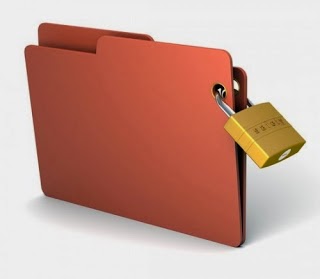
How To Give Password To Folder and protect your folder
How to Give Password to Folder and protect your folders can be done easily, either using software or not. A folder containing documents in word or pdf files of important data in the form it needs to be secured from the hands of ignorant office friends, classmates, or even your own family members. Surely not want dong suppose weve created office tasks or coursework then suddenly the data is copied by your friend? Maybe your friends grounded just borrow your laptop and it will not open up important files, but who knows if it is misused? This would be very annoying. Therefore we need to secure our data in order not to arbitrarily open by someone else by limiting access to the folder that contains important data. Then how do I give the password folder on your computer? There are two ways this can be achieved, namely:
Give the folder password without software
This step can be taken if you want to give the password without the help of software, so that you only utilize the existing facilities on the computer. This can be done for computers that operate on the Windows operating system yes. Here are the steps.
1. Open notepad, for the uninitiated notepad located in the Start -> All Programs -> accesorries -> notepad
2. Copy the code below and paste it into notepad
cls
ECHO OFF
title Folder Locker
if EXIST "Control Panel. {21EC2020-3AEA-1069-A2DD-08002B30309D}" goto UNLOCK
if NOT EXIST Locker goto MDLOCKER
: CONFIRMED
echo Are you sure u want to Lock the folder (Y / N)
set / p "cho =>"
if% cho% == Y goto LOCK
if% cho% == y goto LOCK
if% cho% == n goto END
if% cho% == n goto END
echo Invalid choice.
goto CONFIRM
: LOCK
ren Locker "Control Panel. {21EC2020-3AEA-1069-A2DD-08002B30309D}"
attrib + h + s "Control Panel. {21EC2020-3AEA-1069-A2DD-08002B30309D}"
echo Folder locked
goto End
: UNLOCK
echo Enter password to unlock the folder
set / p "pass =>"
if NOT% pass% == TYPEPASSWORD goto FAIL
attrib -s -h "Control Panel. {21EC2020-3AEA-1069-A2DD-08002B30309D}"
ren "Control Panel. {21EC2020-3AEA-1069-A2DD-08002B30309D}" Locker
echo Folder Unlocked successfully
goto End
: FAIL
echo Invalid password
goto end
: MDLOCKER
md Locker
echo Locker created successfully
goto End
: End
3. In the code TYPEPASSWORD replace the text with the password that you wish
4. Keep a notepad by clicking File and then Save As, and save it with the name lock.bat save as type to All Files.
5. Open the file that we just open, wait a minute it will appear a new folder named Locker.
6. Move the files you want to secure into the Locker folder
7. Double-click again on the file lock.bat it will display a dialog if you want to lock the folder, type Y and then Enter
8. Folder Locker will be lost, but do not worry because this folder is hidden only by the system
9. To bring it back, double-click on lock.bat then be asked for a password to open it, type in your password and press Enter
10. Folder Locker has resurfaced and you can already see the file again.
Saturday, February 28, 2015
Outlook calendar publish to WebDav server login failed How to change cached credentials in Windows 8
Recently I changed the password of my WebDav-Account. After that, Outlook stopped to publish my calendar to the Server. I tried to re-publish the calendar, but Outlook did not prompt me for the username / Password and still told me "Login failed".
How-I-fixed-it:
I went to system control -> user accounts -> credential manager -> windows logon credentials
There i found the setting "MSOutlookGeneric - MyWebDavServer". Open the tab and use "edit" to Change the credentials or delete the entry to let Outook prompt you for the login credentials again.
In German / Deutsch:
In der Systemsteuerung findet sich unter Benutzerkonten -> Anmeldeinformationsverwaltung -> Windows-Anmeldeinformationen "MSOutlookGeneric - MeinWebDavServer". Den Tab ausklappen unter unter "Bearbeiten" das Passwort eingeben.
Read more »
How-I-fixed-it:
I went to system control -> user accounts -> credential manager -> windows logon credentials
There i found the setting "MSOutlookGeneric - MyWebDavServer". Open the tab and use "edit" to Change the credentials or delete the entry to let Outook prompt you for the login credentials again.
In German / Deutsch:
In der Systemsteuerung findet sich unter Benutzerkonten -> Anmeldeinformationsverwaltung -> Windows-Anmeldeinformationen "MSOutlookGeneric - MeinWebDavServer". Den Tab ausklappen unter unter "Bearbeiten" das Passwort eingeben.
How can i change move re locate the local temp folder of Microsoft OneDrive Skydrive to a different location
I wanted to move the local temp folder of OneDrive to a different harddrive on my computer.
How-I-fixed-it:
I found the right hints here: http://answers.microsoft.com/en-us/onedrive/wiki/sdoptions-sdfileset/change-the-onedrive-folder-location/147dade2-830b-46ee-bf7e-36a8eab9446a
Read more »
How-I-fixed-it:
I found the right hints here: http://answers.microsoft.com/en-us/onedrive/wiki/sdoptions-sdfileset/change-the-onedrive-folder-location/147dade2-830b-46ee-bf7e-36a8eab9446a
Change the OneDrive Folder Location
Technical Level : Basic
Summary
Learn how to change the OneDrive folder location. This is useful if you have a limited storage capacity main drive but a separate storage drive and you want your OneDrive content synced to the separate drive. This is not for OneDrive for Business.
Details
Many people use two separate drives on their computers: a main drive like an SSD to run the operating system and other programs, and a regular hard drive to store the bulk of their content. OneDrive defaults to the C:UserOneDrive location, however you can change it wherever you want.
Change the OneDrive Location in Windows 8 and Previous
To change the OneDrive folder location in Windows 8 and previous versions, you have unlink OneDrive from your account and then repeat the setup process:- Right-click on the OneDrive icon in the notification area and then select Settings
- Select "Settings" and then select "Unlink OneDrive"
- Follow the setup process again and ensure to select the new drive or location to have OneDrive sync to; you must wait for your files to download again to the new location
Change the OneDrive Location in Windows 8.1
To change the OneDrive folder location in Windows 8.1, you can simply change the location directly through the Properties menu of the OneDrive folder:- Open File Explorer, right-click on the OneDrive folder in the navigation pane (left-hand side), and then select Properties
- Click the "Location" tab and then select "Move"
- Select the location where you want OneDrive to sync to and then click OK
How to remove EMail stuck in Windows 8 Mail App Outbox
I was behind a Firewall that blocked outgoing mails. I got a mail stuck in my Windows 8 Metro Mail App outbox. The app did not allow me to delete it from the folder. How i fixed it: I disabled my network connections. Then i was allowed to delete the mail.
Read more »
How To Use Ccleaner to Fix Computer Error
CCleaner is a software which I think is very useful for computer users or laptop operating system Windows, as CCleaner helps us to clear the cache of the Internet or the rest of the history of the use of our day - the day so as not to burden the hard drive if the unused files are not deleted.
in accordance with the title now I will explain the most complete way to use CCleaner who has not really understand what functions and how to use this software. This article is made with my personal experience.
Step - Step Install CCleaner
Step - Step Install CCleaner
1. Please open the folder that has been my friend CCleaner software downloaded on your PC / Laptop / NoteBook, etc., if my friend had not been able to download CCleaner here. Find the setup file double-click the icon, and then look for the language look like next button.Go to next stage
